

Backup and restore
oonfeeWRT state is not one interchangeable database file. oonfeewrt.db and its matching keyring.json are a recovery unit, and the runtime passphrase is required to unlock that keyring.
The recommended v0.1.8 workflow packages the consistent database snapshot and matching wrapped key material into one encrypted .oowrtbak file. Schema-25 backups include device management modes, named policy sets, alert state, and encrypted integration settings.
v0.1.8 backups are not v0.1.5 downgrade artifacts
v0.1.8 retains schema 25 from v0.1.6 and v0.1.7, with no additional migration. The earlier schema-24 and schema-25 migrations added persistent alerts and encrypted AdGuard connection settings. Protect those credentials as part of the matching database/keyring recovery unit. Keep a verified raw schema-23 recovery unit before upgrading if you need to return to v0.1.5; that older binary cannot open schema 24/25 or restore newer state. See the rollback procedure.
Outcome: You have an encrypted off-host controller backup, its separately recorded export passphrase, and a tested understanding of the preview-first restore safety gate.
Prerequisites and impact
- Backup export and restore require an owner account.
- Start/download and restore mutations require recent account-password reauthentication.
- Use direct loopback or trusted reverse-proxy TLS; do not send backup secrets over an untrusted HTTP path.
- Keep the controller's runtime passphrase available during restore confirmation.
- Store the backup file and export passphrase separately.
Router write impact: Export, upload, preview, and controller-state replacement make no router management call and do not automatically Apply configuration. After a successful restore, router writes are persistently suppressed until an owner reviews the restored state and explicitly resumes them.
What the portable backup contains
The .oowrtbak contains:
- a transactionally consistent snapshot of the live WAL-mode controller database;
- matching wrapped key material needed to open sealed credentials;
- an authenticated manifest with controller version, schema, sizes, and hashes.
It contains sensitive controller state, including account password hashes, configuration, inventory, and encrypted saved credentials. It does not back up foreign/unmanaged router UCI, router firmware, or arbitrary router files. Schema-23 source-relative client observations may be present in the encrypted artifact, but restore treats them as nonportable evidence and clears them from the prepared destination database.
In v0.1.8, alert configuration/history and encrypted integration configuration are also database state. Browser-only topology positions, theme/navigation preferences, and downloaded report CSVs are not included. The optional router helper, its manual read grant, router configuration backup, and any manually downloaded firmware require separate router/workstation recovery planning. A controller backup is not a firmware rollback image.
Restore and external delivery
During disposable restore preparation, v0.1.8 pauses webhook delivery and cancels the pending outbox before the prepared state can replace the controller. Alert rules, incident history, cooldowns, and the encrypted destination are retained, but old hold/evaluation continuity is reset. Missing post-restore evidence must not create a false recovery notification.
After restoring, an Owner must review the restored devices, rule targets, and notification destination, then explicitly re-enable delivery if appropriate. Only future transitions may send; cancelled historical outbox entries are not replayed. Resuming router writes is a separate decision and does not automatically re-enable webhooks. Review restored AdGuard connection settings before requesting a check; saving/restoring them does not poll the service.
The export passphrase:
- is separate from the controller runtime passphrase and account password;
- must contain at least 16 Unicode characters;
- may be at most 4096 UTF-8 bytes;
- is never retained by the controller;
- cannot be recovered if lost.
Export an encrypted backup
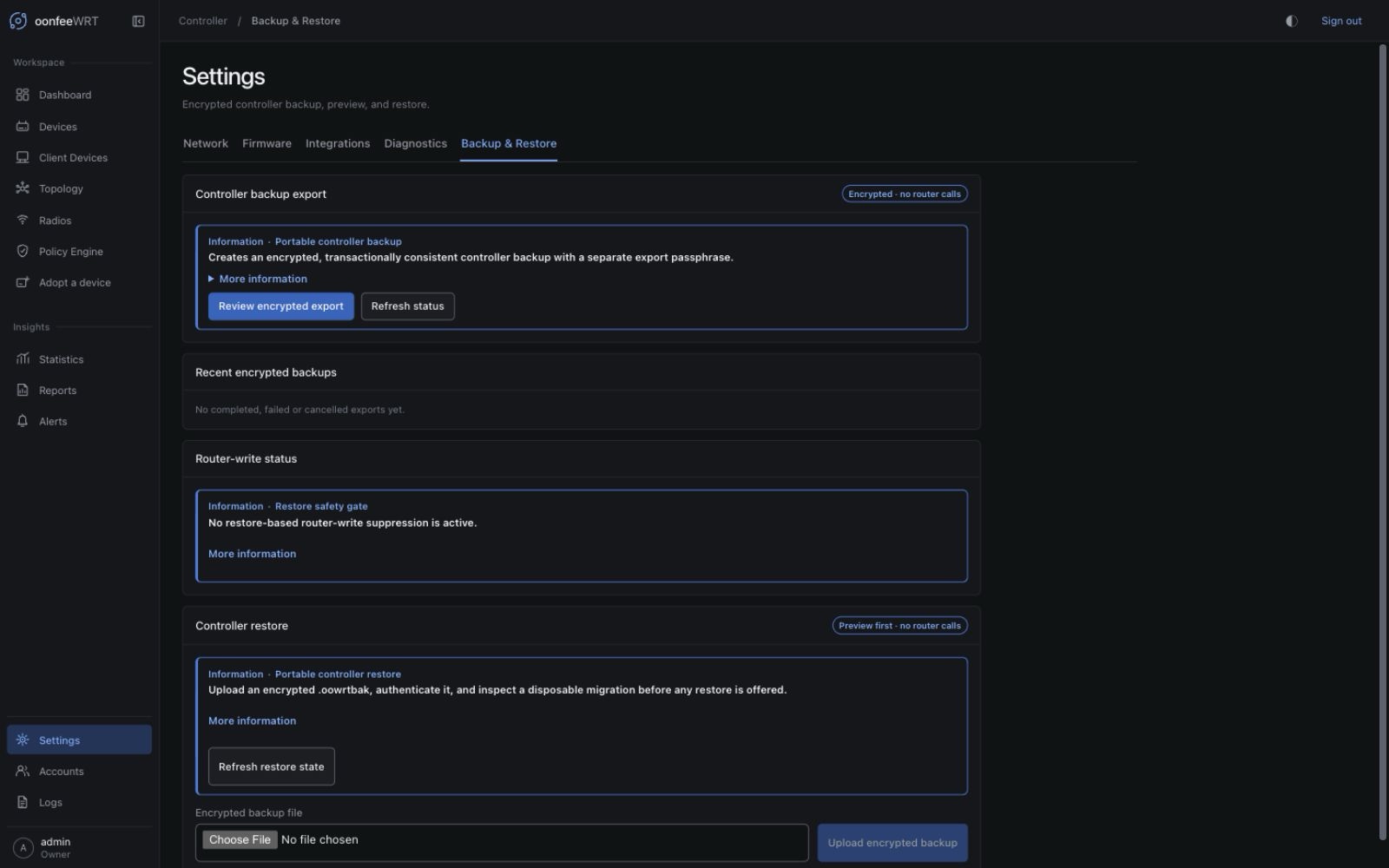
The steps below cover export. Continue to Preview a restore for the upload controls and the rest of the restore workflow.
- Sign in as an owner over loopback or trusted HTTPS.
- Open Settings → Backup & Restore.
- Under Controller backup export, select Review encrypted export.
- Read the current plan, format, includes, excludes, snapshot method, encryption method, and
plan_id. - If prompted, enter your current account password under Confirm owner identity.
- Enter and repeat a separate export passphrase.
- Acknowledge that the file contains account password hashes, controller settings, and encrypted saved credentials, and that the export passphrase is unrecoverable.
- Select Create encrypted backup.
- Wait for the job to complete. One export can run at a time.
- Select Download .oowrtbak.
- Move the downloaded file to protected off-host storage and record its export passphrase separately.
Completed downloadable artifacts remain on the controller for 15 minutes. The page retains up to five recent job records, but job history is not a substitute for downloading the file.
Verify an export
Before depending on it:
- Confirm the job state is completed.
- Record the displayed file size, SHA-256, controller version, and schema.
- Confirm the downloaded file has the
.oowrtbakextension and a non-zero size. - Store the exact export passphrase in the recovery record.
- Perform a restore preview during a maintenance window. Preview authenticates the artifact and validates a disposable copy without replacing live state or contacting routers.
A preview is the built-in portable-artifact validation path. Do not confirm the restore merely to test the file on a production controller.
Preview a restore
- Open Settings → Backup & Restore as an owner.
- Under Controller restore, select the
.oowrtbakfile and upload it. - Reauthenticate with the current owner account password if requested.
- Enter the backup's export passphrase.
- Start the preview.
- Wait for the authenticated disposable preview to complete.
- Review:
- manifest controller version and creation time;
- source schema and target schema;
- database size;
- counts of devices, credentials, owned sections, WLANs, and meshes;
- the bound restore
plan_id; - every compatibility or safety error.
Upload/preview state is temporary and retained for 30 minutes. Uploading and previewing do not replace live state.
Future unsupported schemas, an invalid passphrase, a modified artifact, manifest/database mismatch, corrupt or oversized state, missing usable owner, broken secret records, or failed migration all stop before replacement.
Confirm a controller restore
Confirmation is destructive to the current controller state, although a safety artifact is made first. Schedule downtime and ensure no Apply or other controller operation is running.
From a completed preview, select Review controller restore.
Re-enter the backup export passphrase.
Enter the destination controller runtime passphrase. This is the boot/keyring secret, not your signed-in account password.
Type exactly:
textRESTORE CONTROLLERIndependently acknowledge all four consequences:
- the controller will restart;
- all active controller sessions will be revoked;
- router writes remain suppressed until an owner explicitly resumes them;
- restored desired configuration will not be applied to routers automatically.
Select Restore controller.
Do not interrupt the process. The confirmation creates a prepared pair and safety artifact, records durable intent, cleanly closes the running store, swaps through a controlled in-process restart, and validates the restored state before serving it.
Before replacement, the controller writes a mode-0600 encrypted safety artifact at:
<data-dir>/.oonfeewrt-recovery/safety-<restore-id>.oowrtbakIt uses the export passphrase supplied for confirmation. After the applied-restore audit receipt is cleared, retention targets the newest three recognized safety artifacts. Artifacts referenced by active restore state are preserved even when that temporarily exceeds three. Copy a needed safety artifact to protected off-host storage before later pruning.
Verify restored state
After restart:
- Reload the controller and sign in with an account from the restored backup. All previous sessions were revoked.
- Open Settings → Backup & Restore.
- Confirm Router-write status reports that writes are suppressed.
- Review the restored device inventory, site intent, WLANs, networks, policies, accounts, and event history.
- Allow read-only monitoring to resume and compare observed device state with restored desired state. Wait for a successful Managed Gateway client poll before expecting MAC-targeted policy Preview to pass: portable restore deliberately clears source-relative client observations instead of reusing the source controller's evidence as destination write authority.
- Run Preview. Do not Apply merely because restored state differs.
- Decide whether the restored controller should again own router writes.
Resume router writes after review
Clearing the gate does not start an Apply, but it immediately permits automatic 802.11k neighbour reconciliation. That reconciler may write hostapd RRM neighbour state.
Under Router-write status, select Review router-write resumption.
Acknowledge that resuming may immediately write 802.11k RRM neighbour state.
Type exactly:
textRESUME ROUTER WRITESSelect Resume router writes.
Confirm the suppression status becomes inactive.
Restored desired configuration is still not automatically Applied. Preview and Apply remain separate operator actions.
Filesystem-level backup
Portable export is preferred because it binds the database and key material in one authenticated file. Filesystem recovery remains useful for host-level operations.
Live standalone controller
Use SQLite's online backup mechanism, then copy the matching keyring:
install -d -m 0700 /path/to/private-backup
sqlite3 "$HOME/.local/share/oonfeewrt/oonfeewrt.db" \
  ".backup '/path/to/private-backup/oonfeewrt.db'"
cp -p "$HOME/.local/share/oonfeewrt/keyring.json" \
/path/to/private-backup/keyring.jsonVerify the pair:
OONFEE_PASSPHRASE_FILE="$HOME/.config/oonfeewrt/passphrase" \
oonfeewrt-recoverycheck /path/to/private-backup/oonfeewrt.dboonfeewrt-recoverycheck makes no network call. It expects the exact sibling keyring.json, validates sealed records, and reports counts. Run it on an isolated copy.
Bind-mounted container state
Stop cleanly before copying:
docker stop --time 150 oonfeewrt
install -d -m 0700 /path/to/private-backup
cp -p "$HOME/.local/share/oonfeewrt-container/oonfeewrt.db" \
  "$HOME/.local/share/oonfeewrt-container/keyring.json" \
  /path/to/private-backup/
docker start oonfeewrtFor a named Compose volume, use portable export or established volume-backup tooling after a clean stop. Do not assume the Compose working directory contains the database.
Important recovery rules
- Never copy only
oonfeewrt.dbwhile the controller is running in WAL mode. - Always pair the database with its exact
keyring.json. - Preserve the runtime passphrase separately.
- Do not mix files from two controllers even when their runtime passphrases match; each keyring contains a random data key.
- Do not delete old pre-schema-14 backups casually. They may contain plaintext WLAN/mesh keys and ownership verifiers that later migration cannot scrub outside the live store.
- Do not point an older daemon at a newer unsupported schema.
- Do not manually edit restore markers, suppression records, schema versions, or safety-artifact names.
Troubleshooting and recovery
Export asks for recent reauthentication
Enter the current owner account password. It is neither the runtime nor export passphrase.
Export passphrase is rejected
Use valid UTF-8 containing at least 16 Unicode characters and no more than 4096 UTF-8 bytes. Both entries must match exactly.
The completed export disappeared
Downloadable artifacts expire after 15 minutes. Start a new reviewed export. Job history does not retain an expired file.
Preview reports an invalid export passphrase
Verify the passphrase record for that exact artifact. The controller does not retain or recover it.
Restore confirmation says the plan changed
The artifact, preview, or current controller state no longer matches the bound plan. Cancel, upload again if necessary, and run a new preview. Do not bypass plan binding.
Restore is blocked by an existing router-review gate
Finish reviewing the prior restored state. Either keep writes suppressed and do not start another restore, or explicitly resume the prior gate after review before beginning a new restore.
The controller does not reconnect after confirmation
Check daemon/container logs and /healthz. Startup applies or rolls back the durable restore intent before serving. Do not delete .oonfeewrt-recovery files while investigating.
Recoverycheck refuses SQLite sidecars
Create a self-contained SQLite backup or stop/checkpoint the controller cleanly. A non-empty -wal or -journal may contain recoverable pages and cannot be ignored safely.