

Adopt the first OpenWrt device
Adoption gives the controller a scoped OpenWrt login and records what the device can actually do. It does not apply your desired WLAN, network, DHCP, or firewall configuration.
Outcome: One router appears as a Managed or Monitor only device, polls successfully with its generated scoped credential, and has explicit Gateway, AP, and/or Switch responsibilities.
Before you begin
You need:
- an owner or administrator controller account;
- the router's management address;
- an existing OpenWrt administrator username and password for ubus;
- SSH password access, or an OpenSSH private key if Dropbear disables password authentication;
- controller-to-router reachability for HTTP or HTTPS and SSH;
- a current router backup and physical access for your first trial.
Set a root password first if the router does not already have one:
ROUTER_ADDRESS=192.0.2.1
ssh -t root@"$ROUTER_ADDRESS" passwdoonfeeWRT warns rather than blocks an explicitly trusted passwordless lab router. Do not leave a production or normal LAN router passwordless.
Router write impact
Read-only discovery and Inspect capabilities do not change the router.
Adoption requires a separate acknowledgement and then:
- writes
/usr/share/rpcd/acl.d/oonfeewrt.json; - creates the scoped
rpcd.oonfeewrtlogin with a generated password; - verifies that login and records device capabilities;
- records the router's SSH host key and, for HTTPS, its certificate fingerprint.
Adoption installs no package, binary, daemon, service, or firmware. It does not change network, WLAN, DHCP, or firewall settings. Those require a later Preview and Apply, and monitor-only devices are never eligible for that desired-configuration workflow.
The administrator password and optional SSH private key exist only for this request and are not stored.
1. Open the adoption screen
Sign in and select Adopt a device in the left navigation.
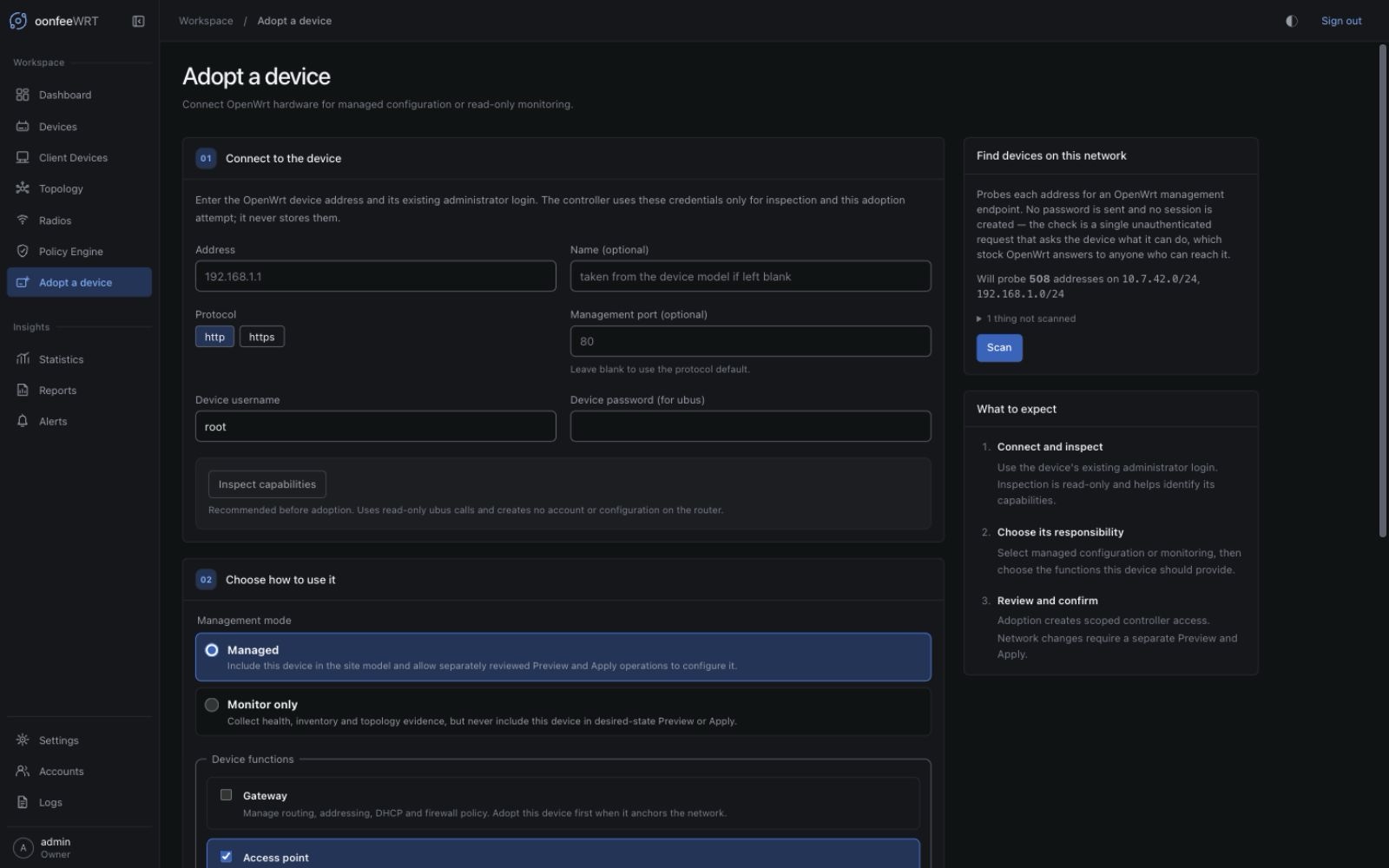
The page always provides add-by-address. Its discovery scan is only a convenience:
- bridge-mode Docker's automatic plan normally sees only the container's own interface subnets, not the host LAN;
- Docker Desktop users should normally add by address;
- discovery is IPv4-only, on demand, and refuses networks wider than
/22; - the shipped scan probes TCP
/ubus; it does not use ARP tables or mDNS in bridge or host-network mode.
If a scan lists the correct router, select Adopt this. Otherwise enter its management address directly.
2. Enter the existing router login
Fill in:
- Address: a router hostname or management IP;
- Name: optional; when blank, the device model can supply the name;
- Protocol:
httporhttps, matching the router's uhttpd service; - Device username: commonly
rooton a stock installation; - Device password (for ubus): the router's existing password;
- SSH private key: only when SSH password authentication is disabled.
The ubus sign-in still needs the password even when an SSH key is supplied. The key is only for the one-time SSH bootstrap.
For HTTPS, adoption records the observed device certificate fingerprint. Later certificate changes are refused until explicitly reviewed rather than silently trusted.
3. Inspect before adopting
Select Inspect capabilities.
Inspection uses authenticated, read-only ubus calls. It creates no inventory row, login, ACL, package, or configuration. Review:
- model and firmware;
- radios;
- observed LAN layout and WAN port;
- active WAN default-route evidence;
- LAN DHCP-server evidence;
- switch mode;
- recommended device functions;
- unobservable items and notes.
An Unknown result means the credential, ACL, rpcd module, or driver did not supply enough evidence. It does not mean the feature is absent.
The radio count is a physical-radio inventory, not a count of SSIDs or BSS interfaces. A radio that exposes both AP and station interfaces is counted once. Likewise, Single interface: eth1 (no separate switch) means the board reported a LAN interface without independent switch ports; it is not evidence that inspection missed a known switch.
To share hardware support evidence, select Export sanitized compatibility report. The browser downloads oonfeewrt-compatibility-report.json. Its format version is 1, and it contains only bounded, allowlisted hardware, firmware, physical-radio, port, feature-state, and supported-function facts. It excludes router and site identity, MAC and network addresses, credentials, network configuration, clients, live telemetry, timestamps, runtime radio/PHY and bridge-member identifiers, and free-text notes. Board-declared LAN/WAN labels remain because they are hardware compatibility evidence.
The report is built from the inspection already completed: exporting it makes no extra router call, writes no controller state, and uploads nothing. If the button is absent, read the inspection notes. Evidence outside the strict safety bounds causes report generation to fail closed while leaving the inspection result usable; do not replace the report with a raw response or screenshot that may expose identifiers.
4. Choose management mode and device functions
First choose how oonfeeWRT may use the device:
| Mode | Choose it when | Boundary |
|---|---|---|
| Managed | oonfeeWRT should poll the device and may later apply reviewed site intent | Eligible supported functions can enter Preview and Apply; the site still permits only one managed Gateway |
| Monitor only | The device should appear in inventory, telemetry, events, and topology but another system or person owns its configuration | Uses the distinct read-only oonfeewrt-monitor ACL; never enters Preview/Apply and cannot receive optional LLDP installation/configuration/removal, wireless-neighbor mutations, or other package/config/remove operations; existing LLDP observation and an acknowledged RF scan remain available when supported; explicit ACL maintenance and un-adoption remain available |
Monitor only still requires the acknowledged scoped login and its distinct read-only ACL below. It means no desired-configuration authority after adoption, not zero bootstrap writes. It is suitable for reachable OpenWrt routers on other routed management subnets. oonfeeWRT does not create the route or VPN: the controller host must already reach SSH and the selected HTTP or HTTPS /ubus endpoint.
Monitor only is not a promise that every observation is passive. A separately acknowledged RF scan can take a capable serving radio off-channel, so clients may pause, roam, or disconnect. It has no intended persistent configuration change; do not run it merely to verify adoption.
Select at least one function:
- Gateway: routes between networks and toward the Internet; a managed Gateway receives addressing, DHCP, and firewall intent, while a monitor-only Gateway contributes observation only.
- AP: publishes managed WLANs and carries their networks; does not imply routing or DHCP.
- Switch: records wired responsibility and available port/topology visibility; it does not promise universal per-port or VLAN configuration.
Select every responsibility the router should perform. A combined OpenWrt router may be Gateway, AP, and Switch. An AP-only router should not receive Gateway just because it has a default route through its management LAN.
If oonfeeWRT will manage the network's gateway, adopt that device first. Only one managed Gateway is supported. Additional monitor-only routed devices may be observed, and AP-only adoption remains valid when routing is intentionally managed elsewhere.
Switch behavior is capability-dependent:
dsa-conditionalcan manage VLAN carriage only when the existing LAN bridge is already VLAN-aware;observe-onlyexposes legacy switch telemetry/topology without promising writes;unknownretains the uncertainty;nonemeans no switch capability was observed.
A generic single-interface LAN is separate from legacy swconfig. v0.1.8 does not create tagged VLAN attachments on that layout and leaves its existing LAN/VLAN configuration unchanged. See Networks, VLANs, and DHCP before planning a tagged network.
5. Review the controller access payload
In v0.1.8, find Install the oonfeeWRT controller access payload? in Review access and adopt, then expand View access details. The short explanation, full access details, and consent checkbox are grouped together; the checkbox is not selected automatically. Published v0.1.5 instead uses Review exact router changes beside its separate access notice.
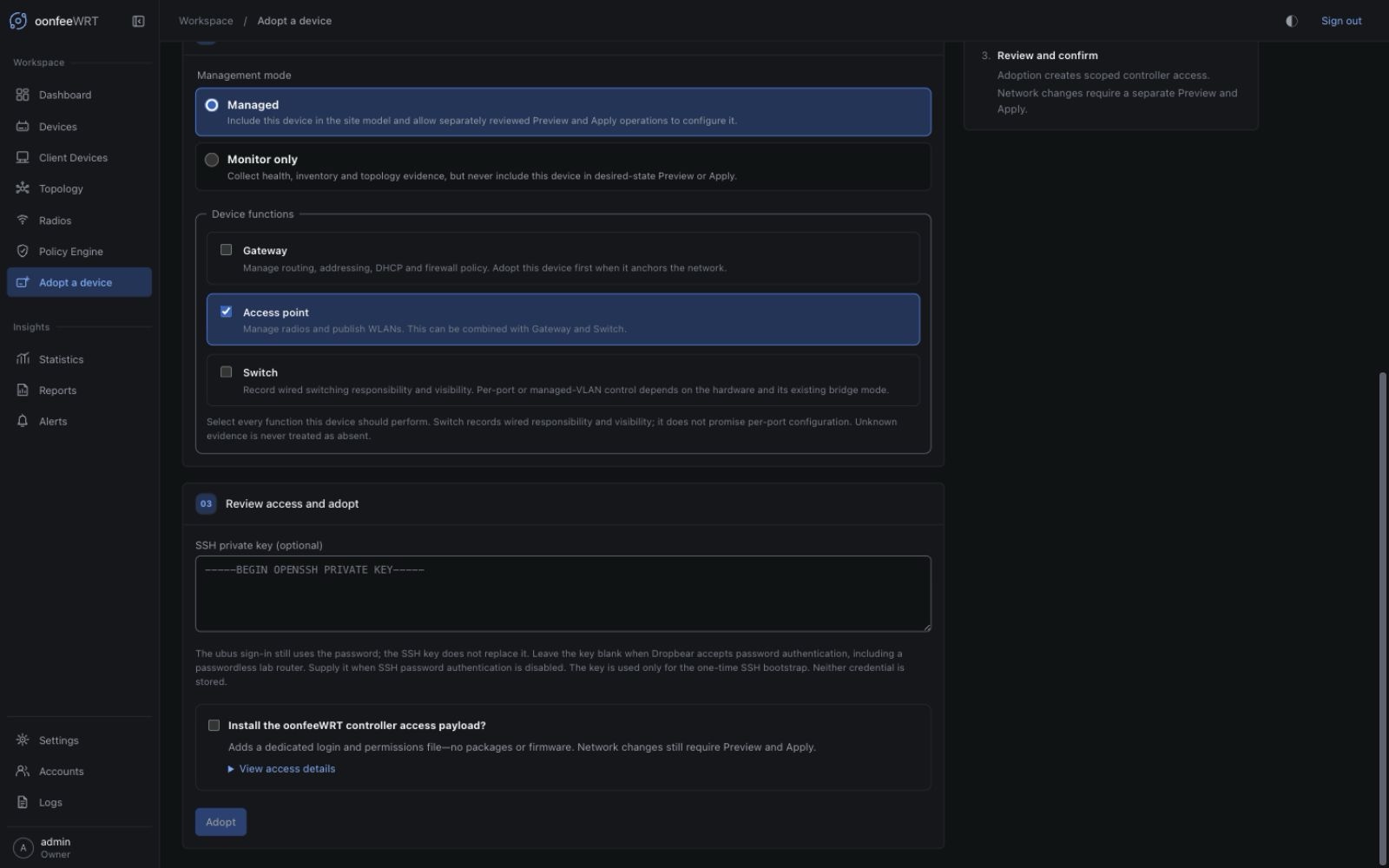
Read the access plan before proceeding. For a Managed device, the scoped ACL grants:
- supported inventory, topology, radio/scan, OpenWrt log, and fixed-target
1.1.1.1ICMP observations; - read-only router UTC observation through
luci.getUnixtime, withluci.getLocaltimeas a compatibility fallback; - ordinary UCI writes for controller-owned network, wireless, firewall, and DHCP sections after a separate Preview and Apply;
- allowlisted option-only patches to exact existing management-LAN, DHCP, and supported conventional
wan/wan6sections only when an explicit non-Router managed IPv6 policy is separately previewed and applied; and - runtime 802.11k neighbour-list updates for managed WLANs that request them.
It does not grant client disconnection or steering. The client keeps the roaming decision.
For monitor-only devices, adoption installs the distinct read-only oonfeewrt-monitor ACL group instead of the managed write-capable group. The server also fences desired/site configuration, optional LLDP installation/ configuration/removal, runtime neighbour-list updates, and other package/ config/remove operations. Existing LLDP observation remains available. Do not treat management mode as a substitute for reviewing the ACL itself.
Select Install the oonfeeWRT controller access payload? only after you accept those exact changes. Leaving it unchecked keeps Adopt unavailable; cancelling leaves the router unchanged.
6. Adopt and wait for verification
Select Adopt.
The controller:
- pins the resolved target for the operation;
- verifies the administrator access and device identity;
- writes and hashes the ACL file over SSH;
- creates the scoped login;
- signs in again using the new controller credential;
- probes capabilities through the same access the controller will use later;
- stores the device only after the safety checks succeed.
The radio survey is deliberately sampled twice, so adoption may take several seconds.
Verify adoption
After completion:
- Review What the capability probe found. Available, undetermined, driver-quirk, and note lists should agree with the hardware evidence.
- Open Devices and select the device.
- Confirm its address, MAC, firmware, management mode, functions, class, and poll status.
- Wait for a successful poll and confirm Last seen advances.
- Review the Management overhead section and unavailable sources.
- Open Dashboard and confirm the device count changes.
Do not expect new SSIDs or network changes yet. Adoption and provisioning are separate. For monitor-only devices, provisioning remains unavailable by design.
Make the first desired-state change safely
When you are ready:
This section applies only to managed devices. A monitor-only device is omitted from the Preview target set and its configuration controls remain unavailable.
- Open Settings → Network.
- Create or edit only the intended network, AP group, or WLAN.
- Save. This changes controller desired state only.
- Select Preview changes.
- Read the per-device diff, source gaps, conflicts, and safety cautions.
- Supply every acknowledgement requested by the current preview.
- Select Apply.
Apply stages the UCI delta and invokes OpenWrt's rollback-protected apply. The controller confirms only after it reconnects and verifies expected interface, WLAN, and uplink health. A lost connection or failed health check leaves the rollback timer active so it can restore the previous configuration. Wait for a fresh read: an unknown or stranded outcome is not proof of rollback and may still have the change live.
Troubleshooting and recovery
Inspection cannot reach /ubus
Verify the protocol, address, and management route. The router needs rpcd and uhttpd with the ubus handler enabled. The expected uhttpd setting is:
config uhttpd 'main'
option ubus_prefix '/ubus'Do not install packages blindly. First verify the existing OpenWrt service and configuration through LuCI or SSH.
Discovery is empty
Enter the IP address directly. The shipped scanner needs an eligible, reachable IPv4 interface subnet; it does not implement ARP-table or mDNS discovery. A Docker bridge or Docker Desktop VM commonly exposes only its internal subnet, not the router's management subnet.
The login fails
Confirm that the password works for ubus as well as SSH. An SSH private key does not replace the ubus password. If the router has no root password, set one before continuing.
SSH bootstrap fails
Confirm TCP/22 reachability, the administrator username, and whether Dropbear permits password authentication. Supply an OpenSSH private key when password authentication is disabled. A changed SSH host key requires explicit review; do not bypass it without verifying the physical device.
Gateway selection is refused
The controller permits only one managed Gateway. Review the existing device functions and management modes before changing which router owns site routing. A second routed device can be Monitor only, but that does not make it a managed failover Gateway or DHCP authority.
Adoption stops partway through
Read the returned rollback report. It includes exact cleanup commands if the controller cannot prove that its ACL or login was removed. Do not repeatedly Adopt until you know whether the prior scoped footprint remains.
Data is unavailable after adoption
Review the device capability report. Missing rpcd access, optional modules, or driver support is shown as a source gap. If the release offers Refresh controller access, review and explicitly approve that ACL-only transaction; polling never widens the ACL silently.
Remove the device later
Use Devices → Remove from controller. Normal un-adoption first reverts controller-owned configuration, then asks for the router administrator credential to remove the scoped login and ACL. It is blocked while an optional LLDP rollback ledger remains. If the router is gone, the force path records that configuration or controller footprint may remain.