

Networks, VLANs, and DHCP
New workspaces do not change network authority
Reports and Alerts add observation and notification, not automatic network reconfiguration. AdGuard Home integration reads an explicitly configured DNS service; it does not replace this DHCP/network editor or change client DNS. WireGuard integration reads existing peer evidence; it does not create tunnels or management routes. Continue to use reviewed Preview/Apply for supported network intent. See Integrations for those separate checks.
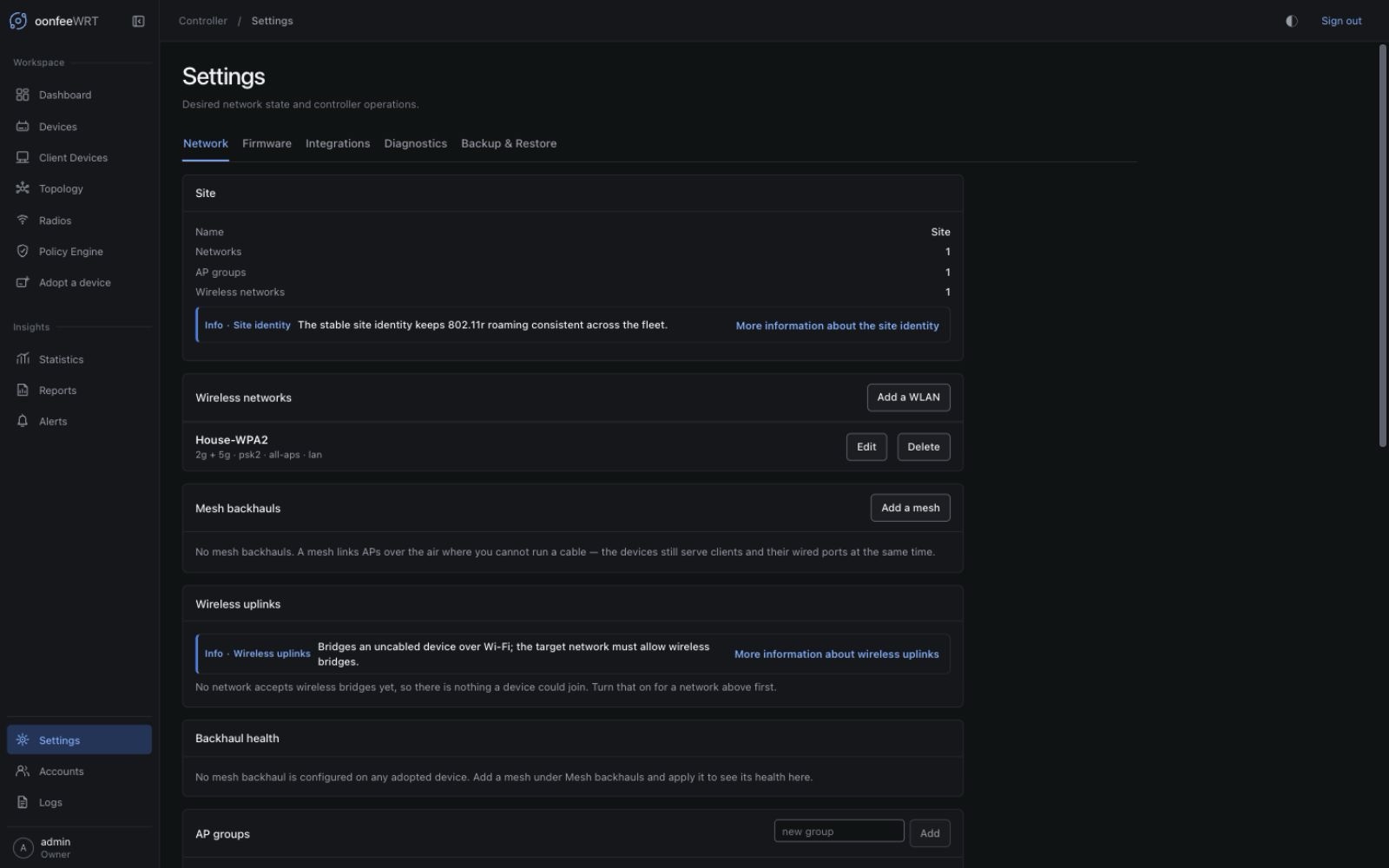
Network settings describe the site you want: IPv4 networks, optional VLANs, DHCP service, and firewall zones. Saving a model records intent in the controller. Preview and Apply are separate actions.
Before you configure a network
Have all of these ready:
- a tested controller backup and router configuration backup;
- one adopted non-critical device for the first rollout;
- an IPv4 CIDR and, when applicable, VLAN ID;
- the intended firewall zone and forwarding behavior;
- a DHCP pool that fits inside the subnet and does not include infrastructure addresses you plan to configure statically;
- capability evidence for DSA, legacy swconfig, or a direct-interface LAN, and for the relevant network/firewall rpcd modules;
- physical switch and trunk configuration outside oonfeeWRT, if traffic must traverse unmanaged infrastructure.
Keep a recovery path
An incorrect management VLAN, bridge, firewall input policy, or DHCP plan can disconnect the controller and clients. Start with one non-critical device, stay on a known management path, and rely on the rollback timer—not on an untested assumption that another path will work.
Understand the model
Network
A network gives a named IPv4 segment its CIDR, optional VLAN ID, DHCP behavior, and firewall-zone membership. Networks are site-wide; device functions and capability evidence determine what each Preview can safely render.
VLAN
A VLAN ID labels traffic; it does not configure every switch between the controller and the client. oonfeeWRT will not silently convert a bridge that is not already VLAN-aware. Legacy swconfig port writes remain observe-only in v0.1.8 because port topology and safe mutation are hardware-specific.
A board may instead present LAN as one direct interface, such as eth1, with no independent switch ports. That is not automatically swconfig and does not mean inspection missed hardware. v0.1.8 does not create tagged VLAN attachments on this layout: Preview omits the unsupported attachment and leaves existing LAN/VLAN configuration unchanged. Untagged or manually prepared behavior still requires a fresh Preview; do not generalize from the read-only Cudy M3000 v2 inspection, where tagged VLAN management was not validated.
DHCP
DHCP settings must stay within the network CIDR. The editor validates missing, inverted, or out-of-range pool values before Apply. Plan the router address, static infrastructure, reservations, and dynamic range together.
IPv6 policy
v0.1.4 exposes one explicit policy per network:
| Setting | Effect after Preview and Apply |
|---|---|
| Router managed | Leaves existing router IPv6 option values unchanged. This is the upgrade-safe default. Selecting it after a prior controller Apply does not restore older values. |
| Prefix delegation | Assigns the selected /48–/64 prefix length to the LAN, serves RA and DHCPv6, disables NDP proxy/relay, and removes ra_default. The length is the LAN assignment, not the prefix requested from the ISP. |
| Disabled | Stops controller-managed RA, DHCPv6, NDP, and delegated LAN assignment while leaving IPv4 and DHCPv4 independent. It does not erase operator-assigned static IPv6 values. |
For a controller-owned tagged VLAN, the Gateway renders the corresponding network, odhcpd, DHCP/DNS, and ICMPv6 policy. APs do not request a delegated prefix or serve RA/DHCPv6.
The management LAN is deliberately narrower because its UCI sections remain operator-owned. An explicit non-Router-managed policy patches only the exact existing LAN interface and its single matching DHCP section. It also coordinates conventional upstream controls when they exist in supported forms:
- Prefix delegation sets only
ip6assignon the LAN; Disabled deletes onlyip6assign,ip6hint, andip6class; - the matching DHCP section receives only
ra,dhcpv6,ndp, and removal ofra_default; - Disable sets
network.wan.ipv6=0and sets a DHCPv6network.wan6.auto=0; - Prefix delegation enables a supported PPP parent and DHCPv6 client without creating a duplicate dynamic IPv6 client;
- an absent
wanorwan6is valid and remains absent; - custom/static
wan6protocols remain router-managed; and - a wrong-type present section, missing/ambiguous LAN or DHCP target, or static
ip6addr,ip6prefix, orip6gwon a Disable target blocks Preview.
These are non-owning patches. They never add the ownership marker, create or delete a section, participate in pruning, or make the rest of a foreign section writable. Two desired networks that would patch the same foreign target conflict instead of depending on render order. Returning the policy to Router managed stops further IPv6 option changes; it does not restore values from before an earlier Apply.
Prefix delegation still requires a working upstream/ISP delegated prefix. The controller does not invent an IPv6 default route, and this release does not claim end-to-end IPv6 validation for every provider or OpenWrt layout.
Firewall zone
The zone anchors forwarded traffic policy and explicit firewall-rule scope. A zone name is not cosmetic: moving a network can change effective policy. The Zone Matrix edits whole-zone forwarding; router-local input rules are separate explicit policies. oonfeeWRT previews controller-owned firewall sections and blocks or warns on conflicts it cannot safely reconcile.
Create a network
- Open Settings → Network.
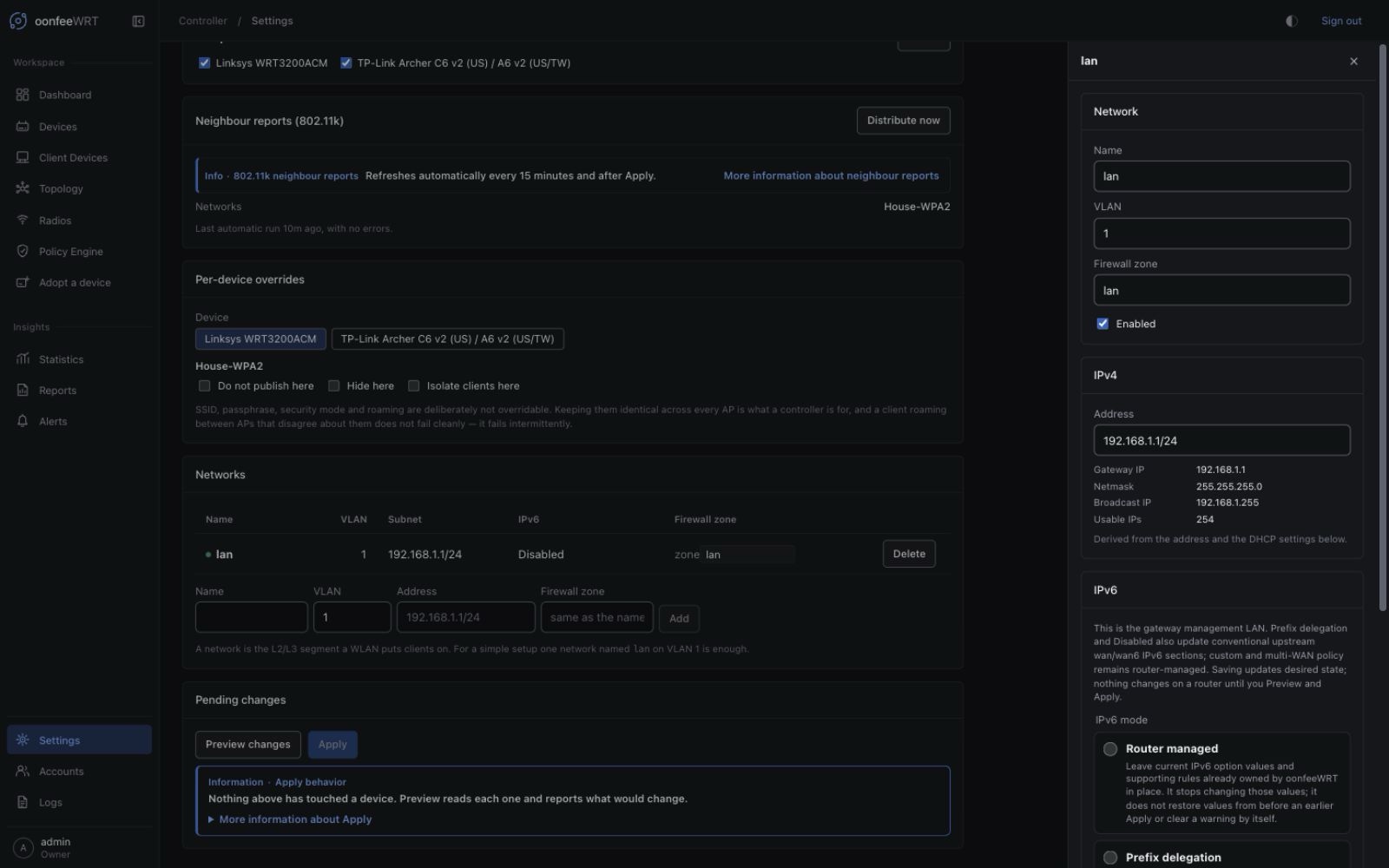
- Find Networks and use the new-network fields below the table.
- Enter a unique, descriptive Name.
- Enter the IPv4 CIDR in Address, such as
192.168.20.1/24, using the router address in the prefix. - If the segment is tagged, enter its VLAN ID and confirm the upstream trunks already carry it.
- Enter the Firewall zone, then select Add to save the network's initial desired state.
- Open the network row to review its detailed settings.
- Enable DHCP only if this managed Gateway should provide it, and set the DHCP pool and lease options shown by the editor.
- Choose the IPv6 policy. Leave Router managed selected unless you intend to review and apply an explicit IPv6 change.
- Save the editor's desired-state changes.
At this point no router Apply has happened.
Respond to the IPv6 condition in Logs
The warning card added in v0.1.4 at the top of Logs → General is an active-condition view, not merely a search result. It appears only when the exact odhcpd router-advertisement/no-usable-default-route message was recently received and router-log coverage is fresh. It remains independent of the selected event filters and page, names the affected routers, and totals the occurrences stored in their current condition records. Review IPv6 and Apply opens the relevant network settings.
That card must not be confused with retained event history. Since v0.1.1, exact new repeats have incremented one row per router-log producer epoch, and every startup has converted matching legacy raw rows into the same bounded form. v0.1.4 adds the current-condition classification and guided card; it does not introduce repeat compaction. Old compacted rows can remain in the event table without making the card active. When collection is stale, restarted, or has a continuity gap, status is unknown rather than proof that the problem cleared. With fresh coverage and no recent occurrence, the active banner clears; continued quiet reaches historical classification after 15 minutes, while the retained row can remain visible until normal log retention removes it.
Use the card as a guided workflow:
- Confirm the named router and that router-log coverage is current.
- To keep IPv6, edit the primary management network and choose Prefix delegation. Confirm the ISP actually delegates a prefix.
- To stop IPv6 service on that LAN, choose Disabled. Resolve any static IPv6 or target-shape blocker deliberately.
- Generate a new Preview and inspect every option-level patch, especially the management path and conventional WAN targets.
- Apply once, verify IPv4 and the intended IPv6 behavior, then wait for fresh log collection to stay quiet. Do not delete event rows to make the card disappear.
Review zone behavior
Before Apply, open the Policy Engine → Zone Matrix and Master Table and answer:
- Is forwarding to WAN allowed or denied as intended?
- Which other managed zones can this zone initiate connections toward?
- Are inbound port forwards or explicit gateway-input rules required?
- Does foreign firewall configuration already cover or conflict with this path?
The Zone Matrix does not model DHCP/DNS access to the Gateway itself. Review the network's DHCP settings and any explicit gateway-input rules separately.
Use explicit policy rules for exceptions. Avoid broad forwarding merely to make a test pass.
Preview the fleet change
Open the review action in Settings and generate a fresh Preview. A preview is bound to the current desired state and fleet; if either changes, generate it again.
Inspect every device bucket:
- Changes — owned UCI sections/options and any explicit, allowlisted management-LAN IPv6 option patches that would be staged;
- No change — desired state already matches observed owned state;
- Omissions — capability or device-function rules intentionally skip work;
- Conflicts/blockers — foreign state, missing sources, unsupported bridge shape, driver defects, or invalid intent;
- Acknowledgements — traversal or hardware risks you must explicitly accept.
The preview redacts WLAN and mesh keys. A preview should never be used as a way to reveal stored secrets.
Apply and verify
- Resolve blockers rather than bypassing them on the router.
- Read every acknowledgement and select only those you understand.
- Start Apply once. The operation is durable; do not create a second attempt merely because the browser disconnects.
- oonfeeWRT preflights the fleet, applies non-Gateway devices first, and the Gateway last.
- Each device stages a bounded UCI batch and starts OpenWrt's rollback window.
- The controller reconnects, reads the expected state, runs the health checks, and confirms only on success.
After completion:
- confirm the operation receipt reports a known outcome for every device;
- verify the management path still works;
- connect a test client to the segment;
- verify address, gateway, DNS, and intended Internet/inter-zone reachability;
- when IPv6 changed, verify delegated-prefix status, a client IPv6 address, DNS, IPv6 Internet reachability, and the absence/presence of RA as intended;
- inspect Logs → Audit for the Apply record;
- compare the device's owned-state/capability view with the preview.
If connectivity fails
Do not immediately repeat Apply. OpenWrt should revert an unconfirmed change when the rollback window expires.
- Keep the router powered and avoid restarting it during the window.
- Wait for the durable operation status to settle.
- Reconnect through the original management path.
- Confirm the prior configuration returned in LuCI or with read-only UCI inspection.
- Read the controller receipt and logs for the device boundary it crossed.
- Correct desired state, generate a new preview, and try again only after the outcome is known.
If the outcome is reported as unknown or possible write, treat the router as changed until independently inspected.
Coexist with LuCI and existing UCI
oonfeeWRT ordinarily writes only sections it created and recorded. Human-managed sections remain visible but are not silently rewritten, except for the explicit, allowlisted management-LAN IPv6 option patches documented above. This has three consequences:
- foreign configuration can block a requested intent when both would control the same effective behavior;
- renaming or manually removing an owned section outside the controller can break ownership evidence and requires investigation, not automatic takeover;
- an IPv6 option patch does not transfer ownership, so Router managed, controller pruning, and un-adoption do not reconstruct earlier foreign values.
Make a deliberate ownership choice. Do not repeatedly edit the same logical network in both LuCI and oonfeeWRT.
Common problems
| Preview finding | Meaning | Safe response |
|---|---|---|
| Bridge is not VLAN-aware | The live bridge cannot accept the requested safe rendering | Convert it manually with a tested OpenWrt-specific plan, or use an untagged design; oonfeeWRT will not convert it silently |
| Legacy swconfig device | Per-port VLAN writes are not safely generalized | Keep port configuration outside oonfeeWRT and use supported observation/site features |
| Single-interface LAN with no switch ports | The layout was read successfully, but v0.1.8 cannot create a tagged VLAN attachment on it | Keep existing LAN/VLAN configuration unchanged or prepare it manually with an OpenWrt-specific recovery-tested plan, then generate a fresh Preview |
| Foreign firewall conflict | A human-owned rule/zone affects the requested traffic path | Inspect the exact UCI/nft behavior, then remove or redesign one owner intentionally |
| Management-LAN IPv6 target is missing or ambiguous | The exact existing LAN interface or its single matching DHCP section cannot be proved | Correct the OpenWrt section shape deliberately; oonfeeWRT will not guess, create, or claim a target |
| Disabled is blocked by static IPv6 | ip6addr, ip6prefix, or ip6gw exists on a management-LAN or conventional WAN target | Decide whether the static value is still required; remove it manually only with a recovery-tested plan, then Preview again |
Missing firewall4 capability | The controller cannot establish the required firewall backend | Install/enable the supported OpenWrt component outside adoption, then reprobe |
| DHCP range invalid | Pool is incomplete, outside the subnet, or conflicts with the interface plan | Correct the CIDR/pool before preview |
| Stale preview | Desired state or fleet changed after preview | Generate and review a new preview |
| Apply interrupted | Browser or controller connection ended during a durable operation | Reopen the operation status; never assume failure means no write |