

Wi-Fi, roaming, and overrides
v0.1.8 context
The new illustrated inventories and editable topology do not change WLAN ownership, device functions, or radio capability gates. Use Statistics for retained radio evidence and client observability for an association timeline; moving a map node never roams a client or changes an AP group. The optional experimental helper does not enable steering or install firmware. Wireless changes still require Preview and explicit Apply.
oonfeeWRT models a WLAN once and fans it out to the selected APs. AP groups and bounded per-device overrides let a mixed fleet share intent without pretending every radio and driver behaves identically.
Before you change Wi-Fi
- Back up the controller and the OpenWrt configuration on a test AP.
- Confirm each target has the AP function and fresh radio capability data.
- Record the existing SSID, security mode, passphrase, bands, channels, and management path.
- Use a wired management path for the first change when possible.
- Check whether the AP is using a wireless uplink; changing its serving radio can disconnect both clients and controller management.
- Decide which radios/APs belong together before creating groups.
Build the site structure
AP groups
An AP group selects where a WLAN is eligible to broadcast. Use groups for real placement or policy boundaries, such as All APs, Downstairs, or Guest areas. Avoid one group per device unless the intent is genuinely unique.
The effective target is the intersection of:
- devices with the AP function;
- group membership;
- detected radio/band capabilities;
- WLAN settings and any bounded override;
- safety/capability gates in the preview.
WLANs
A WLAN describes the shared intent:
- SSID and enabled state;
- security mode and passphrase when required;
- target AP group;
- network attachment;
- band/radio eligibility;
- protected management frames (PMF);
- 802.11r fast transition;
- 802.11k neighbour reports and 802.11v steering-related options exposed by the current UI.
The API and preview do not reveal stored WLAN or mesh keys, including legacy reveal query patterns. Replace a forgotten passphrase; do not expect the controller to display it.
Create or update a WLAN
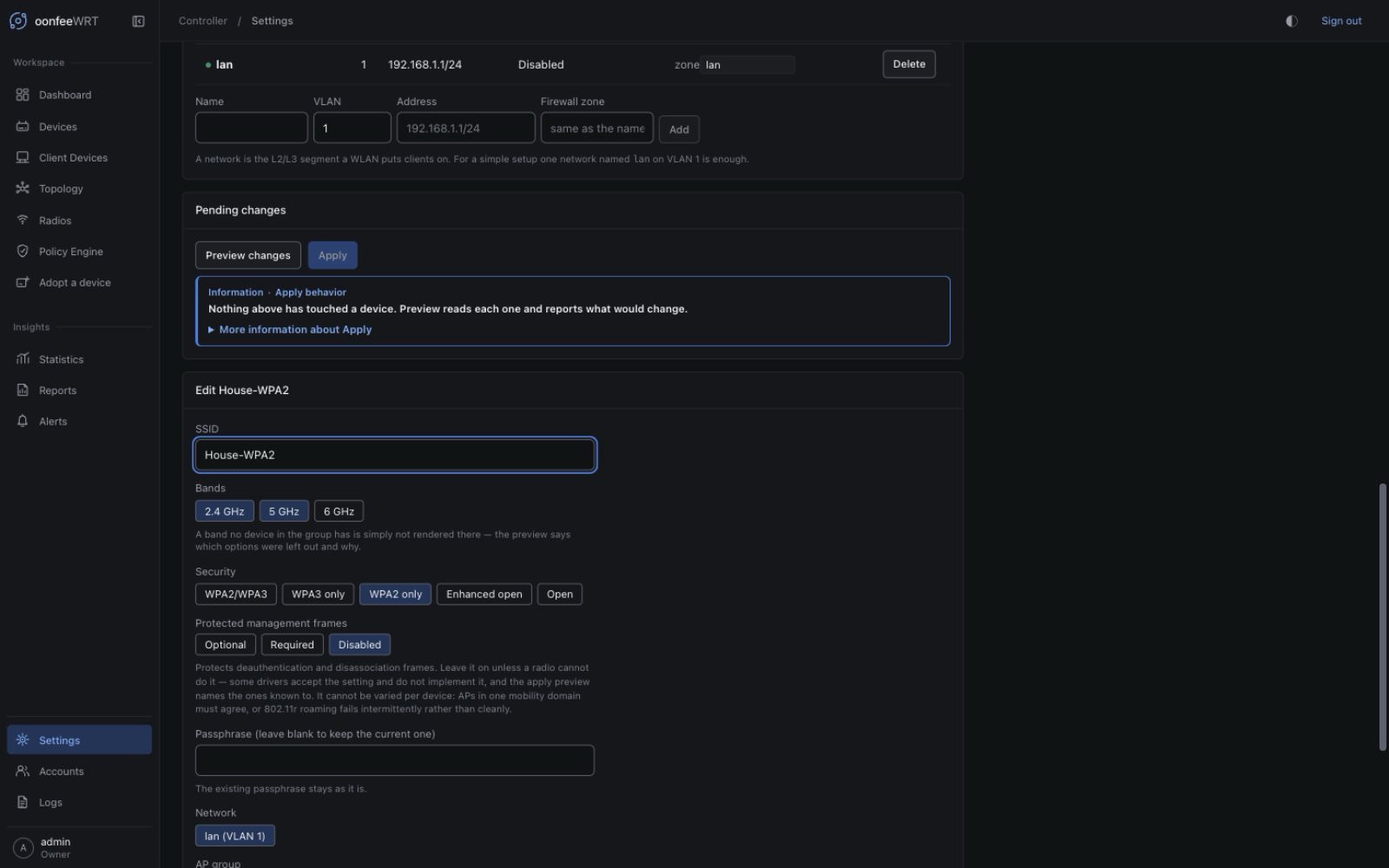
- Open Settings → Network and find Wireless networks.
- Choose Add a WLAN, or select Edit for the WLAN you intend to change.
- Enter the SSID exactly as clients should see it.
- Select a security mode supported by every target AP/client combination.
- Enter a passphrase when the mode requires one.
- Choose the client network and AP group.
- Set band and roaming options conservatively for a mixed fleet.
- Save desired state.
- Generate a fresh Preview and expand every target device.
Check that the preview fans out to the intended APs and does not silently omit a radio. An omission should include a reason, such as missing capability, incompatible band, device function, or unreadable source.
Security modes and PMF
Use a mode supported by the oldest required client and the target OpenWrt driver. PMF requirements must agree with the selected security mode; the UI clamps combinations that cannot be valid, but capability evidence still matters at Apply time.
Roll out stricter security in stages:
- create a test WLAN or target one AP;
- verify representative clients can associate and obtain DHCP;
- verify DNS, Internet, and required local services;
- expand to the remaining group;
- retire the older WLAN only after observing the migration.
802.11k, 802.11v, and 802.11r
These features help clients make roaming decisions; they do not force a client to roam well.
- 802.11k provides neighbour information. oonfeeWRT can maintain managed neighbour state when capabilities and complete observations support it.
- 802.11v can provide transition guidance where the driver and client support it.
- 802.11r reduces authentication handoff cost but requires compatible security and consistent configuration across participating APs.
Keep SSID, security, passphrase, and roaming identifiers consistent across the roaming domain. Start with two APs and a known client. Observe actual association changes in Clients/Topology rather than assuming an enabled toggle proves roaming.
The automatic 802.11k neighbour reconciler is a router-write path. It runs only when router writes are not globally suppressed, and uses the managed evidence and ownership rules. After a controller restore, review neighbour intent before entering RESUME ROUTER WRITES.
Mesh backhauls
Mesh settings describe a shared backhaul and SAE key across participating devices. An empty key creates an open mesh, which permits any compatible nearby node to join and reach the network behind it.
Secure mesh backhauls
Use a strong mesh passphrase unless the deployment is an isolated lab. Treat a mesh key change as a management-path change when APs rely on that backhaul.
Mesh support is capability-gated. Real mesh-backhaul behavior remains outside the published live-hardware evidence for v0.1.4, so validate on non-critical devices and keep a wired recovery path.
Wireless uplinks
A wireless uplink makes an infrastructure device a client of another WLAN. Changing its band, SSID, key, or upstream AP can sever controller reachability. The UI exposes both the network intent and traversal hazards; read each preview acknowledgement.
Wireless-uplink scenarios are implemented but not part of the published live hardware validation set. Do not roll them across a remote fleet without local recovery.
Per-device overrides
Overrides are for bounded hardware differences. They must not fork the WLAN's identity or security contract across APs. The v0.1.8 UI permits per-device publication, hidden-SSID, and client-isolation overrides. It does not permit SSID, passphrase, security-mode, roaming, band, or radio-channel overrides.
If many devices need the same override, change the group or shared WLAN intent instead. Repeated one-off overrides make preview review and future hardware replacement harder.
Existing broadcasts and takeover
Pre-adoption inspection may find human-managed wireless sections. oonfeeWRT does not silently claim them. The device detail can present a takeover brief that identifies the broadcast and the consequences of leaving it unmanaged or disabling it.
Review provenance by section, not only by SSID: two sections can broadcast the same SSID while having different owners or purposes. A takeover brief never includes the passphrase.
Apply and test
- Apply to one test AP or the smallest practical group.
- Keep the device powered while the OpenWrt rollback window is active.
- Confirm the durable receipt reports success and expected state.
- From a test client, forget stale credentials if appropriate and associate.
- Verify DHCP, DNS, Internet, and intended local-zone access.
- Check the Clients page for AP/radio attribution and source freshness.
- Walk between two APs and correlate association history before declaring roaming successful.
- Expand the group only after the result is repeatable.
Troubleshooting
Shared-PHY radios after a controller upgrade
Some MediaTek devices expose multiple configured radios, such as radio0 and radio1, on one PHY. After upgrading a controller that previously collapsed those targets, use this recovery sequence once for each already-adopted affected device:
v0.1.8 preserves each configured UCI wifi-device section key as the radio's authoritative identity, even when several sections share one PHY. It does not derive configured identity from a runtime PHY or BSS name.
- Do not retry the failed Apply automatically. The old operation may already have changed router configuration before ownership recording failed; inspect the device's current wireless state and the durable Apply outcome first.
- Run Re-probe capabilities once.
- Generate a fresh Preview. Confirm that each band names a distinct
wifi-devicetarget (for example,radio0andradio1) and that the desiredwifi-ifacesections reference the matching target. - Only after that Preview is correct, authorize Apply as a separate action.
If the Preview still reports ambiguous radio targets or tells you to re-probe, stop rather than retrying. Do not clear ownership, delete the controller database, re-adopt the device, or use repeated Apply attempts as recovery. Invalid, duplicate, or ambiguous section identities are rejected before any router write. If support is needed, share only a sanitized compatibility report plus redacted Preview/error text; remove addresses, MACs, SSIDs, and credentials.
| Symptom | Likely cause | Action |
|---|---|---|
| WLAN omitted from one AP | Band/radio capability, AP function, group membership, or unreadable source | Expand that device's preview and capability report; do not force the section manually |
| Client sees SSID but cannot join | Security/PMF/client incompatibility or wrong key | Test a known client, verify mode, replace rather than reveal the passphrase, and review OpenWrt logs |
| Client joins but gets no address | Network attachment, VLAN path, DHCP, or firewall input | Follow Networks, VLANs, and DHCP from AP through Gateway |
| Roaming does not occur | Client decision, inconsistent domain settings, missing 802.11k/v/r support, or RF design | Verify configuration consistency, capability evidence, signal/channel design, and actual association history |
| AP becomes unreachable after Apply | Wireless management/uplink path changed | Wait for rollback; use wired/local recovery if it cannot reconnect; inspect the durable Apply outcome before retrying |
| Preview reports foreign wireless conflict | Existing human-owned section overlaps the requested intent | Choose explicit manual ownership or a distinct WLAN; do not delete the foreign section blindly |