
Work · spaces, tasks & outputs
Work helps you turn files in a folder into a result, such as a summary, spreadsheet, or presentation. Choose the folder, describe what you need, and inspect the files it creates.
First time? Follow Your first Work task to make a summary from sample notes, with every click and expected result explained. If you still need to connect a model, start with installation.
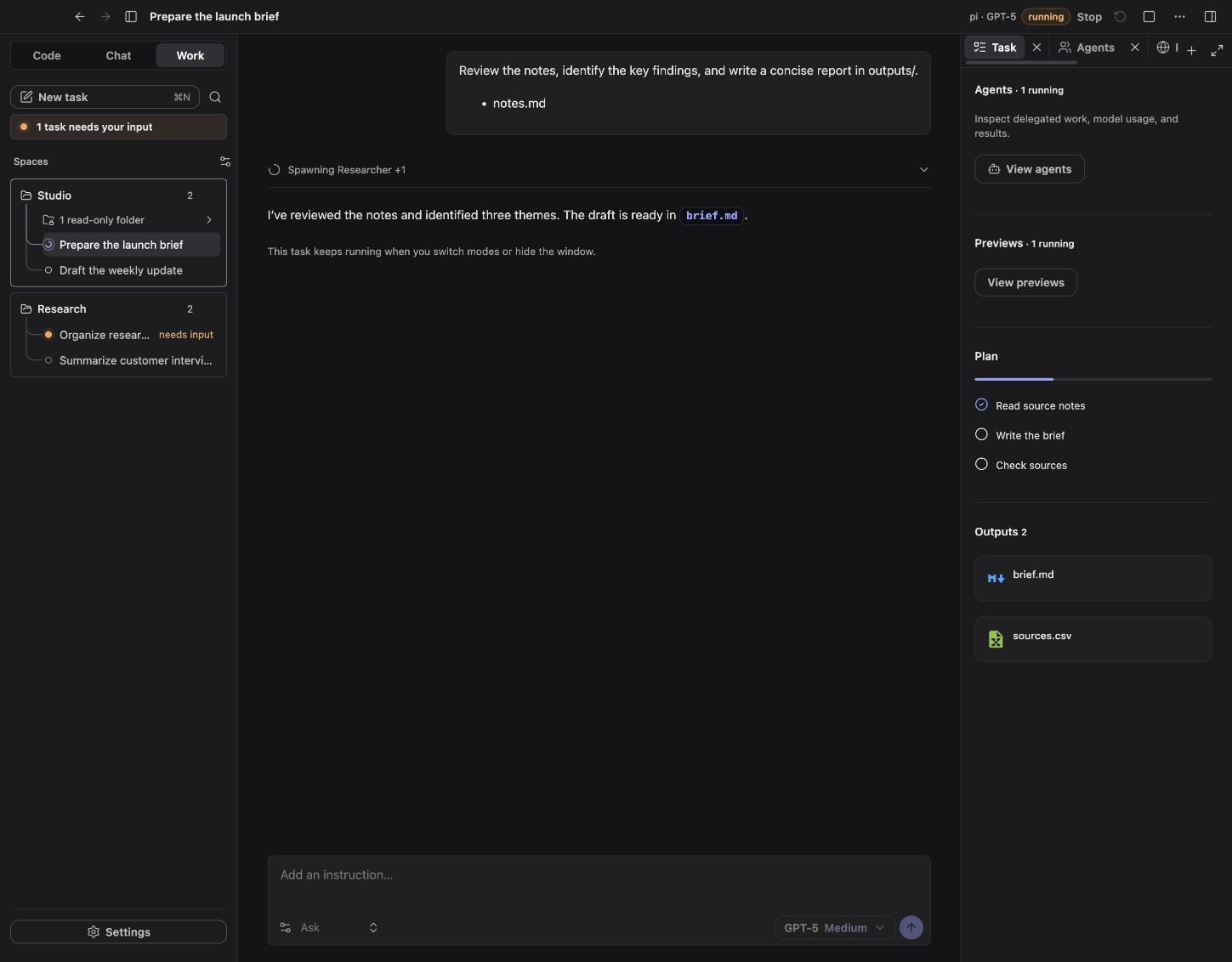
Offline preview with sample data.
The words you will see
| Word | What it means here |
|---|---|
| Space | The folder you choose for the task. |
| Task | One conversation about work to do in that folder. |
| Brief | Your instructions: what to read and what to create. |
| Plan | The agent's list of steps. |
| Approval | A request for permission before an action. Read it before agreeing. |
| Output | A file produced by the task, usually under outputs/. |
For example, a space named “Meeting notes” could contain notes.txt; a task could read it and create outputs/summary.md. The glossary explains other terms used later in this guide.
Spaces and tasks
A space is a folder you choose. It can be a Git repository or an ordinary directory. Optional extra folders provide read-only reference material.
A task is a conversation inside that space with a brief, selected model, access settings, status, plan, and outputs. Code projects and Work spaces are separate views; switching modes does not convert a project into a space.
Create a task
- Choose Work → Add space and select a test folder.
- Create a task in that space.
- Describe the file you want, which files to read, where to save it, and anything that must stay unchanged.
- Choose your configured model and review its access setting. Start with Ask where you can choose it.
- Select Run now or Queue.
For example:
Read the Markdown notes in this folder. Create a two-page research brief and a
summary spreadsheet under outputs/. Cite the source filenames, mark uncertain
claims, and leave the original files unchanged.Start with a small representative input. A model's ability to produce valid files depends on the model, available tools, runtime installation, and the source material.
Expected result: the task starts Running or waits Queued. When it finishes, open the file it produced and check that it answers your request. If it says Needs input, open the task to review its question or approval request.
Write a useful brief
Give the task four things: input, result, destination, and constraints. Use filenames when you know them.
| Instead of… | Try… |
|---|---|
| “Sort this out.” | “Read the three notes files and create a one-page summary in outputs/summary.md.” |
| “Make a spreadsheet.” | “Extract the date and total from each sample receipt into outputs/receipts.xlsx; flag anything you cannot read.” |
| “Clean my folder.” | “List a proposed folder organization first and wait for approval before moving or deleting files.” |
A focused request is easier to check. After reviewing the first result, send a follow-up asking for a specific correction or change.
Task states
| State | Meaning and next action |
|---|---|
| Queued | Waiting for a task slot. Review the brief before it starts. |
| Running | The agent is working; inspect its transcript and plan. |
| Needs input | An approval or question needs attention. Open the task to respond. |
| Done | The agent finished its turn. Review the actual output files. |
| Failed | Read the error and retained progress before following up. |
| Stopped | Execution was interrupted. Existing edits and files remain. |
Task concurrency controls how many queued tasks can run together. Background work continues while the window is hidden, while the app/backend remains running. It is not a scheduled cloud service; quitting the runtime or losing the host can interrupt it.
Files and approvals
The Work profile directs deliverables into outputs/ unless told otherwise. It treats deleting or overwriting pre-existing files outside that output area as approval-sensitive, including in broader access modes.
Keep source material and deliverables in separate folders. A clear brief helps, but a sentence in a prompt is not a substitute for access controls or a backup. General shell execution and trusted custom tools do not become a complete OS sandbox merely because they run in a Work space.
Browser, computer, and third-party connectors retain their own approval policies. Approving a task's file access does not imply permission to send messages, upload files, or interact with unrelated apps.
Bundled document skills
You can ask for common document formats in ordinary language. A skill is a set of instructions and tools the agent can use for that format; you do not need to write Python code yourself.
The Work runtime includes a small skill pack and locked Python dependencies for:
| Deliverable | Tooling used by the bundled skills |
|---|---|
| Word documents | python-docx |
| Spreadsheets | openpyxl |
| Presentations | python-pptx |
| PDFs | pypdf and reportlab |
| Charts | matplotlib |
The runtime is prepared on demand. Its first installation needs internet access and disk space. The presence of a skill does not guarantee professional layout, numerical correctness, source accuracy, or compatibility with every input file. Open and inspect the exported artifact in the app you intend to use.
Inspect the plan and outputs
The task conversation shows the agent's work and tool results. The Task panel collects the plan and reported files; output detection combines file-change events and the task's checkpoint comparison where available.
Use the file controls to open or reveal outputs. Keep an eye on paths: a file mentioned in prose is not proof that it exists or that it is the latest revision. Verify important documents and spreadsheet formulas directly.
Previews and background processes
A preview is a locally running view of something the task is building, such as a small web page. It is different from an output document: it can stop working when its process stops or the app quits.
The Previews panel lists development servers or background commands started through the supported task tooling. It exposes Open, Stop, and Restart controls and the detected local address where available.
Stopping a preview process does not delete its source files. Stopping the task is a separate action. A local preview URL is reachable only where networking and process lifetime allow; it is not a published website.
Stop, recover, and rewind
Use Stop task for one task or Stop all tasks for the current running work. Review partial outputs before retrying. A new follow-up should account for files already created.
Checkpoints can support selective file rewind for a space, with the same exclusions and size limits as Code. Rewind cannot undo a website submission, an email, or state changed inside another desktop application. See checkpoints.
Good first tasks
- Summarize a few notes into one Markdown report.
- Extract a small known table into a spreadsheet and compare it with the source.
- Turn an outline into a short slide deck, then inspect its layout.
- Propose a folder reorganization before authorizing any moves or deletions.
For sensitive files, read privacy & trust before choosing a provider or enabling browser/computer tools.
Advanced: engines and teams
Work runs on pi with a Work-specific set of tools and settings, called a profile. Choosing the optional OMP engine for Code does not change Work's engine.
Chain of Command is a Code feature. Work uses a single-model profile when inheriting that policy; supported custom delegation is a separate setting. See agents if you want to explore those options after a single-model task works.