
Code · projects & conversations
Code lets you ask questions about a software project and, with the relevant permissions, change its files. A project is the folder holding that code. Start by asking for an explanation before requesting edits.
First time in Code
After model setup, add a copy of a small coding project, select it, and start a new conversation. Keep the default pi engine and choose your enabled model. Start with Read-only for an explanation, or Ask when you want to review proposed actions.
Explain this project's folder structure in plain language. Tell me how I would
run its existing checks. Do not change any files.Expected result: an explanation, with your project files unchanged. If the agent reports a command to run, read what it does before running it. Later, a diff shows the lines changed in a file so you can review an edit.
If you want to make ordinary documents rather than work on code, follow Your first Work task. The glossary explains repository, branch, terminal, and the other terms used in this reference.
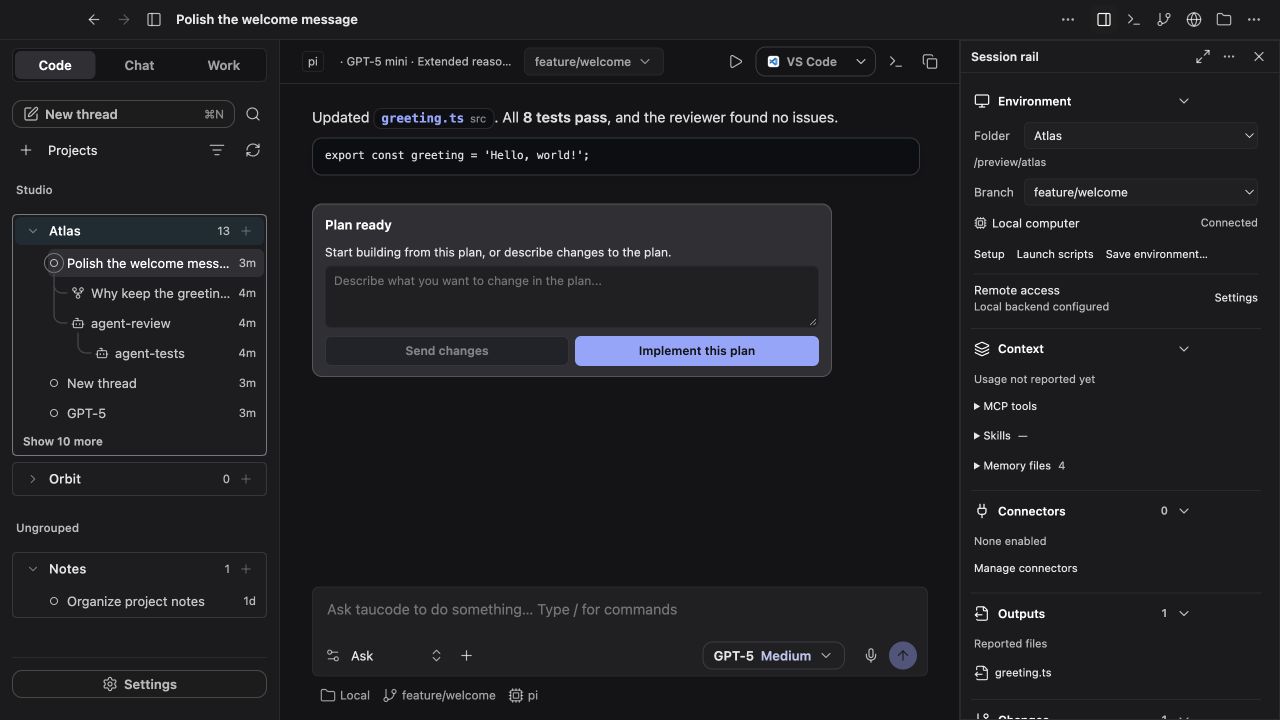
Offline preview with sample data.
Add and organize projects
Add a local folder from the Code sidebar. A folder does not have to be a Git repository to hold a conversation; Git-specific controls need a usable repository and Git installation.
Project groups help organize several folders. Conversations sit under their projects, with child agents and forks represented in the tree. Pin or rename important conversations, use search to find older work, and archive conversations you no longer need in the active list.
Before starting work, check the session's folder and branch in the header or session rail. A similarly named project or conversation can point at a different checkout.
Start a conversation
- Select the project and create a new conversation.
- Choose an enabled engine and a model compatible with it.
- Review reasoning and access settings.
- Write a brief with a concrete outcome and a way to verify it.
- Inspect approval requests and file changes as the agent works.
For an unfamiliar project, a useful first request is:
Explain the entry points, important modules, and the commands used to validate changes.
Do not modify files yet.For an implementation task, include the expected behavior, constraints, and relevant checks. The agent's completion message is a claim to review; inspect the diff and test output.
Choose an access policy
| Policy | Intended use |
|---|---|
| Read-only | Exploration and review without normal write/command permissions. |
| Ask | Changes and commands can pause for approval according to the runtime's policy. |
| Full access | Broader execution privileges; use with a trusted project and engine. |
Browser, computer, and MCP connectors have additional policies. Their permissions do not follow automatically from a Code conversation's access label. Custom engines must honor their protocol restrictions; taucode is not a universal OS sandbox for arbitrary executables.
Follow up during a turn
The composer supports queued or steering follow-ups according to your settings and engine support. A queued message waits for the appropriate turn boundary; steering asks the active engine to adjust its current work.
Use Stop when you need to interrupt execution. Stop does not revert edits already made or external actions already completed. Review the current files before deciding whether to continue or rewind.
Composer shortcuts
Type / at the beginning of a message to open the built-in shortcuts:
| Shortcut | Purpose |
|---|---|
/plan | Insert a request to plan first and wait before implementing. |
/goal | Insert a request with an outcome and verification. |
/new | Start a fresh conversation; trailing text becomes its initial message. |
/sidechat | Open a side conversation where the engine supports forks. |
/compact | Summarize active context on supported engines. |
Use the arrow keys and Enter/Tab to choose, or Escape to dismiss. /plan and /goal are editable prompt starters; they do not create background goal loops. A slash inside normal prose or a filesystem path does not open this menu.
Use the supporting panels
| Panel or control | What to check |
|---|---|
| Session rail | Folder, branch, local/remote environment, context, connectors, and reported outputs. |
| Files | Project structure and relevant file contents. |
| Git/diff | Actual changes, staging state, branches, and commit context. |
| Terminal | Commands and long-running development processes. Multiple terminal tabs are available. |
| Agents | Child agent status and delegation transcripts. |
| Side chat | A related fork without replacing the main conversation. |
| Browser | Web context and the browser session used by enabled tools. |
Panels are resizable and can be organized into tabs. Collapse unused panes to give the conversation more room. Feature switches can remove controls, so a missing panel may be disabled in Settings.
Git, branches, and worktrees
Git features include repository status, diffs, branch selection, staging, and worktrees. Worktrees let separate tasks use separate checkouts. They still share the repository's history, and each checkout has its own working files.
Inspect the branch and folder before switching or removing a worktree. Preserve uncommitted changes you need. Checkpoints supplement this workflow but do not replace commits, remote pushes, or backups.
GitHub issue and pull-request features use an installed and authenticated gh CLI. A GitHub remote and the correct gh account are needed. Provider API keys are unrelated to GitHub authentication.
Agents, side chats, and teams
Single-model conversations keep the execution path simple. Custom delegation and Chain of Command add bounded child work when enabled. The Agents panel exposes those children; reading their actual output is more useful than relying on a parent's summary alone.
Side chats require a conversation and an engine with fork support. They preserve a relationship to the main work but do not give a side-chat model picker authority over the parent's team configuration.
See agents & teams for hierarchy, overrides, and limits.
Recover from an error
For a provider request failure, the latest failure card can offer Change model and Retry. Retry uses current model, reasoning, and access settings, preserves an unsent draft, and does not rewind completed tool work.
An engine process that stops unexpectedly has a different recovery path: review retained output and continue with a follow-up. Unfinished commands are not automatically restarted. Recovery is strongest for the verified pi/OMP paths; it is not a power-loss durability guarantee.
Use checkpoints & rewind when you need to restore checkpointed project files or supported conversation state. For a recurring failure, consult troubleshooting and diagnostics.